When to use this tool
- Family photo scans
- Faded album pictures
- Low-resolution archive copies
- Photos prepared for a memorial or family history
AI photo restoration tool
Preview a free restoration example, then give a scanned or compressed family photo a cleaner, more readable version for sharing and archiving. The workflow asks the model to preserve faces and the original scene while repairing softness, contrast and compression damage.
Token2Any is an independent browser-based Token2Any-style effect converter, online visual enhancer and AI image generator for creating visual references from uploaded game frames and character images. It keeps structure, pose and identity as reviewable constraints while changing style, lighting and materials, and also offers separate upscale and restoration workflows. It is not an official Token2Any runtime.
JPG, PNG and WebP · up to 10 MiB · inspect faces and text before relying on the result
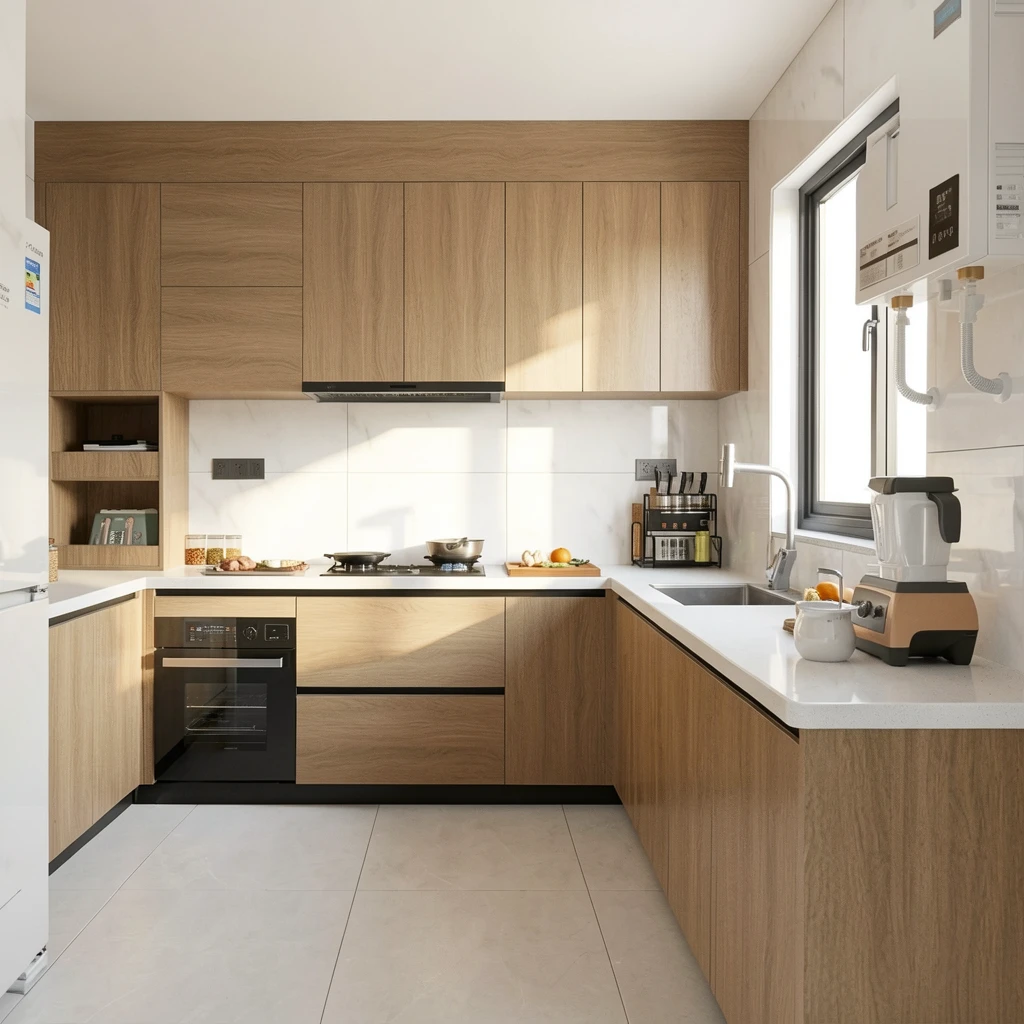 Free reference case
Old Photo Restoration is a browser-based image quality enhancement workflow for people who already have a source image and need a controlled visual change. It uses a task-specific instruction rather than a blank prompt, so the requested output starts from the existing composition, subject or material. The page's before-and-after example is an illustrative reference; the result from your own file depends on its resolution, lighting, crop and visible detail.
The workflow has three decisions. First, choose the largest original file instead of a screenshot or a second-generation social download. Next, confirm what is allowed to change and what must remain anchored: the task prompt is written for image quality enhancement, while the page shows the applicable input and output limits before submission. Finally, compare the source and result at 100 percent and download only after the information-sensitive areas pass your review. This order matters because a plausible AI result can look polished while still changing a face, label, edge or background.
Use a clear JPG, PNG or WebP with enough pixels for the details you care about. For this page, the published intake note is: JPG, PNG and WebP · up to 10 MiB · inspect faces and text before relying on the result. A clean input gives the model stronger evidence about edges, colour and texture. If the source is already heavily compressed, crop it tightly or find the original before spending a credit. Keep the source file beside the output; the service is an enhancement estimate, not a reversible edit history.
This workflow is a good fit for Family photo scans, Faded album pictures, Low-resolution archive copies, Photos prepared for a memorial or family history. It is especially useful when the subject is already recognizable and the job is to improve it while preserving the scene's main structure. It is less useful when the source has no recoverable detail, when the requested change is an exact measurement, or when the output will be used as an official record. In those cases, use the original capture, a design or editing application, or the receiving authority's own specification.
Best when the original is recognizable but faded, soft or compressed. A model can make uncertain detail plausible, so keep the scan and compare faces, dates, uniforms and other historical information before sharing it as a record. AI restoration may alter faces, text, uniforms and small historical details. Keep the original scan and label the output as enhanced when accuracy matters. The service cannot guarantee that a small character, logo, number, face or repeated pattern will remain unchanged. A larger output also does not create new factual evidence; it creates a more usable visual estimate.
Your allowance and the task cost are shown before a signed-in job starts. The public example is available for comparison, while processing a personal file uses the displayed credit amount. A failed generation on our side is handled by the account workflow according to the billing policy. Check the output target and the source dimensions first so a task is not spent on a size you cannot use. For batch or API work, compare the per-image cost with storage, retries and your own review time.
Before publishing, compare the result with the original in a fixed order: overall composition, subject identity, long straight edges, small text or labels, repeated texture, colour and shadows. Zooming to 100 percent exposes halos and invented marks that a thumbnail hides. For portraits, check eyes, teeth, hairline and skin texture. For products or architecture, check logos, windows, perspective and material boundaries. For generated edits, check that the requested change is present without unrelated objects or background drift.
No. It can render a plausible face, but it cannot know which features were lost. Treat a heavily damaged result as an artistic reconstruction, not evidence.
This page focuses on restoration and contrast. It may preserve the original monochrome appearance; use a separate colorization workflow when color is the goal.
Use the original scan for records. The enhanced file is useful for viewing, printing and sharing, but generative changes can affect information-sensitive details.